03 / Selected Works
Hotkeys
Overview
An interactive typing trainer built specifically for primary school students (ages 10–12) in Flanders, Belgium. The app teaches children to type on a Belgian AZERTY keyboard through structured exercises, a competitive speed game, and a trophy reward system that keeps them motivated.
The full system covers both sides of the classroom: students get a fun, game-like experience with a visual keyboard that shows them where to place their fingers, while teachers get a complete dashboard to manage exercises, track student progress, and control the classroom in real-time.
The Challenge
Teaching Kids to Type — Properly
Primary school students in Belgium use a Belgian AZERTY keyboard layout — different from the QWERTY layout most typing tools assume. Most online typing trainers are built for English QWERTY keyboards, making them useless for Flemish schools. Teachers needed a tool that matches the exact keyboards their students have in front of them, speaks Dutch, and is simple enough for 10-year-olds to use without help. On top of that, it needed to be engaging enough that students would actually want to practice.
Two Users, Two Needs
Need a typing tool that matches their Belgian keyboard, shows them the right finger placement, and gives instant feedback on mistakes.
Need to create and manage exercises, see how each student is performing, control when the class can start practicing, and import students in bulk from a class list — without any technical knowledge.
The Solution
How It All Fits Together
At the centre is the typing trainer itself — the web application students open in their browser. Around it: the visual AZERTY keyboard that lights up while they type, the structured exercises that build skill, the speed game that turns practice into competition, the trophy system that rewards progress, live classroom controls that let teachers manage the lesson, and a full administration dashboard for managing everything behind the scenes.
The Visual Keyboard
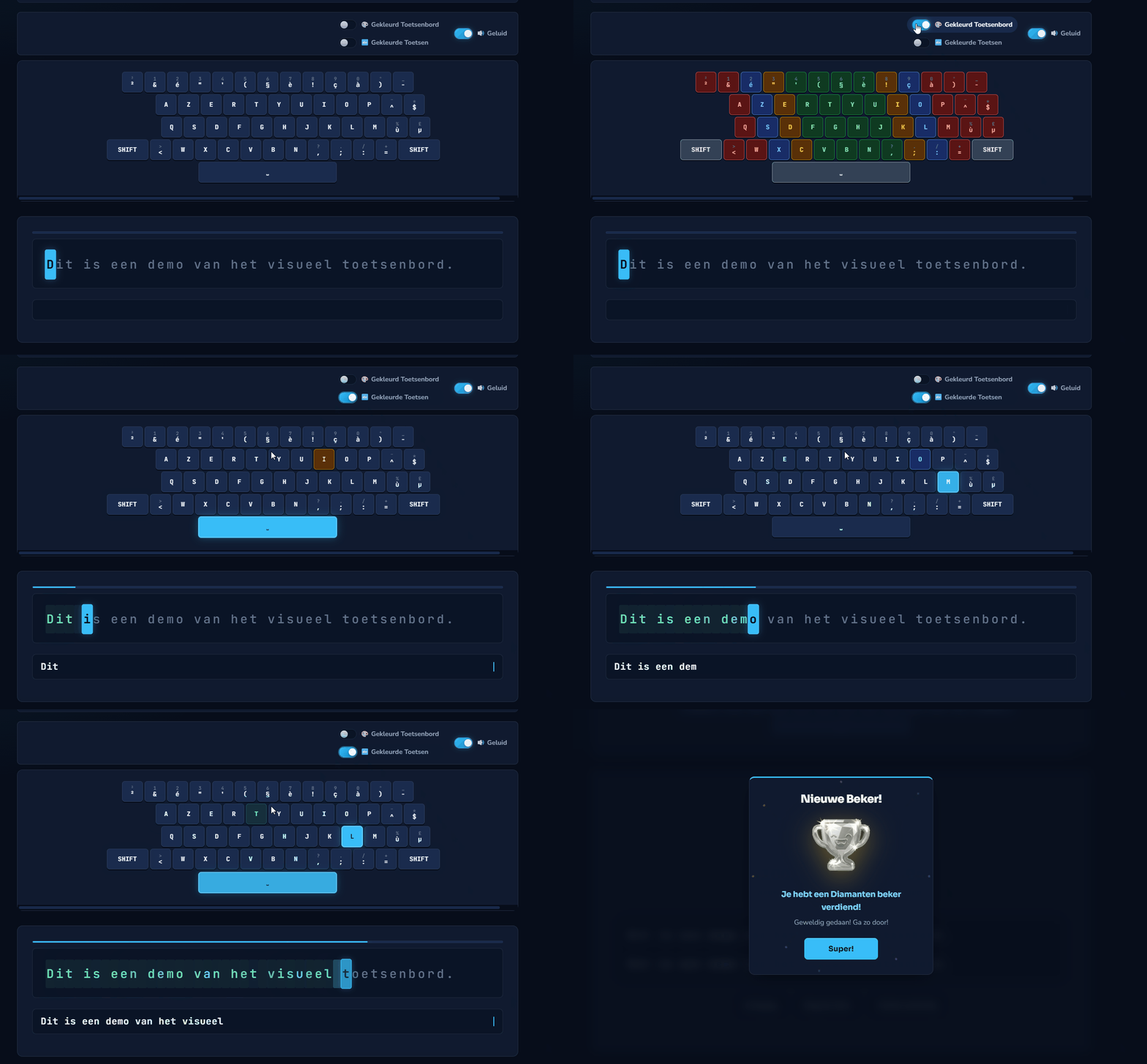
The heart of the tool is a full on-screen Belgian AZERTY keyboard that mirrors the physical keyboard students have in front of them. Each key is coloured by finger zone — red for pinkies, blue for ring fingers, yellow for middle fingers, green for index fingers — so students learn correct finger placement from the start. A "single key" mode can highlight just the next key to press, guiding beginners one step at a time. Every keypress produces a realistic mechanical click sound, generated in real-time — each key sounds slightly different, just like a real keyboard.
Structured Exercises
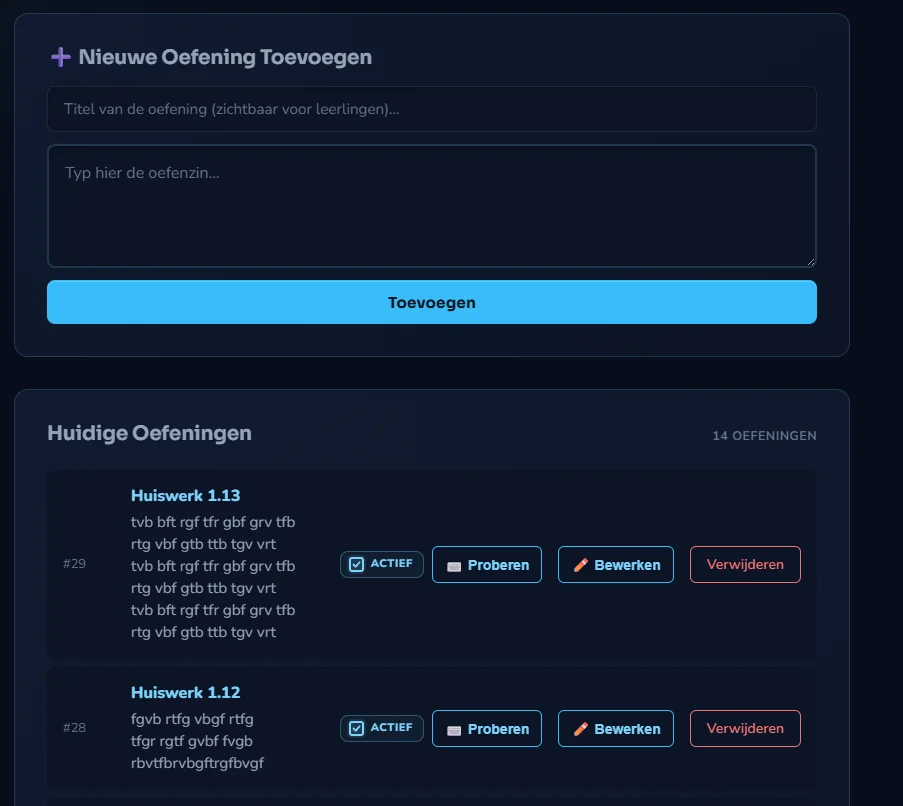
Teachers create exercises — sentences that students type character by character. Every letter turns green or red immediately, so students see their mistakes as they happen. There's no backspace: students can't correct errors, which forces them to slow down and focus on accuracy. When the exercise is done, a results screen shows accuracy percentage, typing speed, and a side-by-side review of what they typed versus what was expected. Students can even replay their entire attempt at the original speed — watching each keystroke appear on the keyboard one by one — to see where they went wrong.
Trophies & Motivation
Every exercise can earn a trophy based on accuracy. Trophies can only go up — if a student already has Gold and scores 85% the next time, their Gold is preserved. When a new trophy is earned or upgraded, an animated celebration pops up with confetti. The exercise picker on the home screen shows each student's trophy collection at a glance, so they always know which exercises to revisit for a higher score. Reaching Diamond automatically prompts the next exercise, keeping the momentum going.
Teacher Dashboard
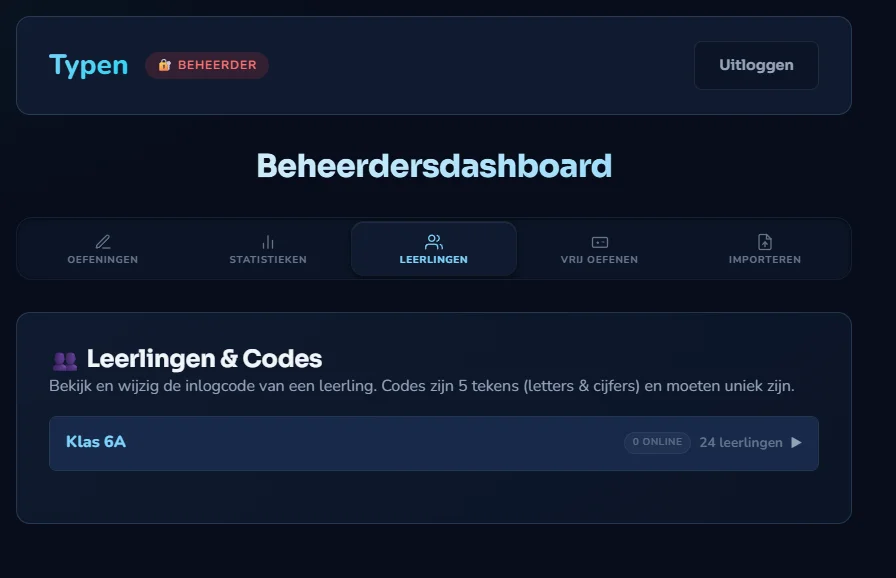
The teacher gets a full administration panel with five tabs. The first manages exercises — create, edit, or deactivate them. The second shows per-student and per-class statistics: accuracy, speed, and trophies earned. The third controls who can access the speed game. The fourth displays the class list with student credentials that can be revealed or updated. The fifth lets teachers upload an Excel file to import students in bulk — the system reads the spreadsheet, suggests column mappings, and imports the selected classes in one action.
Student Statistics
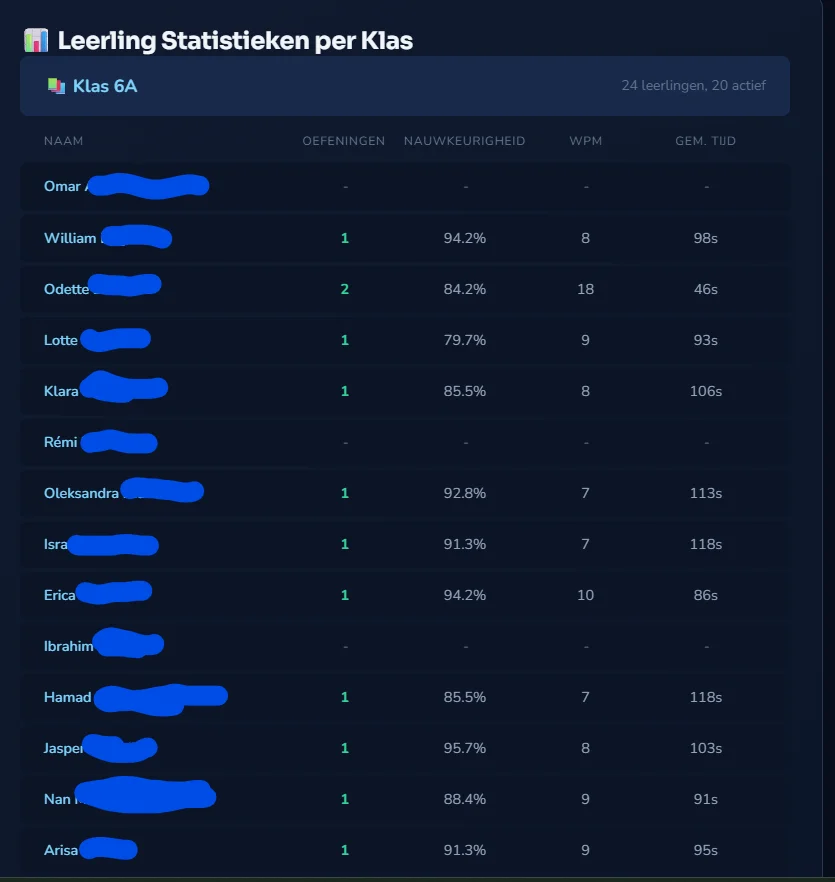
Through the dashboard, teachers can view detailed statistics for each class and individual student. This includes their average typing speed, overall accuracy, and the number of trophies they've earned. This data helps educators identify which students might need extra guidance and who is ready for more challenging exercises.
Live Classroom Control
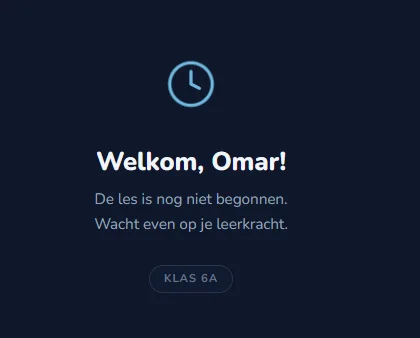
When a teacher blocks a class from the dashboard, every student in that class sees a full-screen waiting message with their name — "De les is nog niet begonnen. Wacht even op je leerkracht." This update happens in real-time: no page refresh needed. When the teacher unblocks the class, the waiting screen disappears and exercises become available instantly. The dashboard also shows how many students in each class are currently online, so the teacher knows when everyone is ready.
Connect